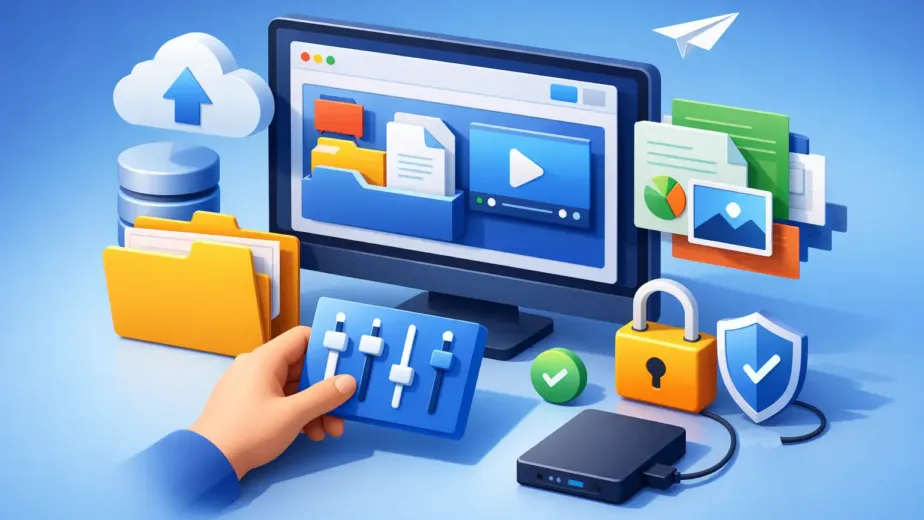
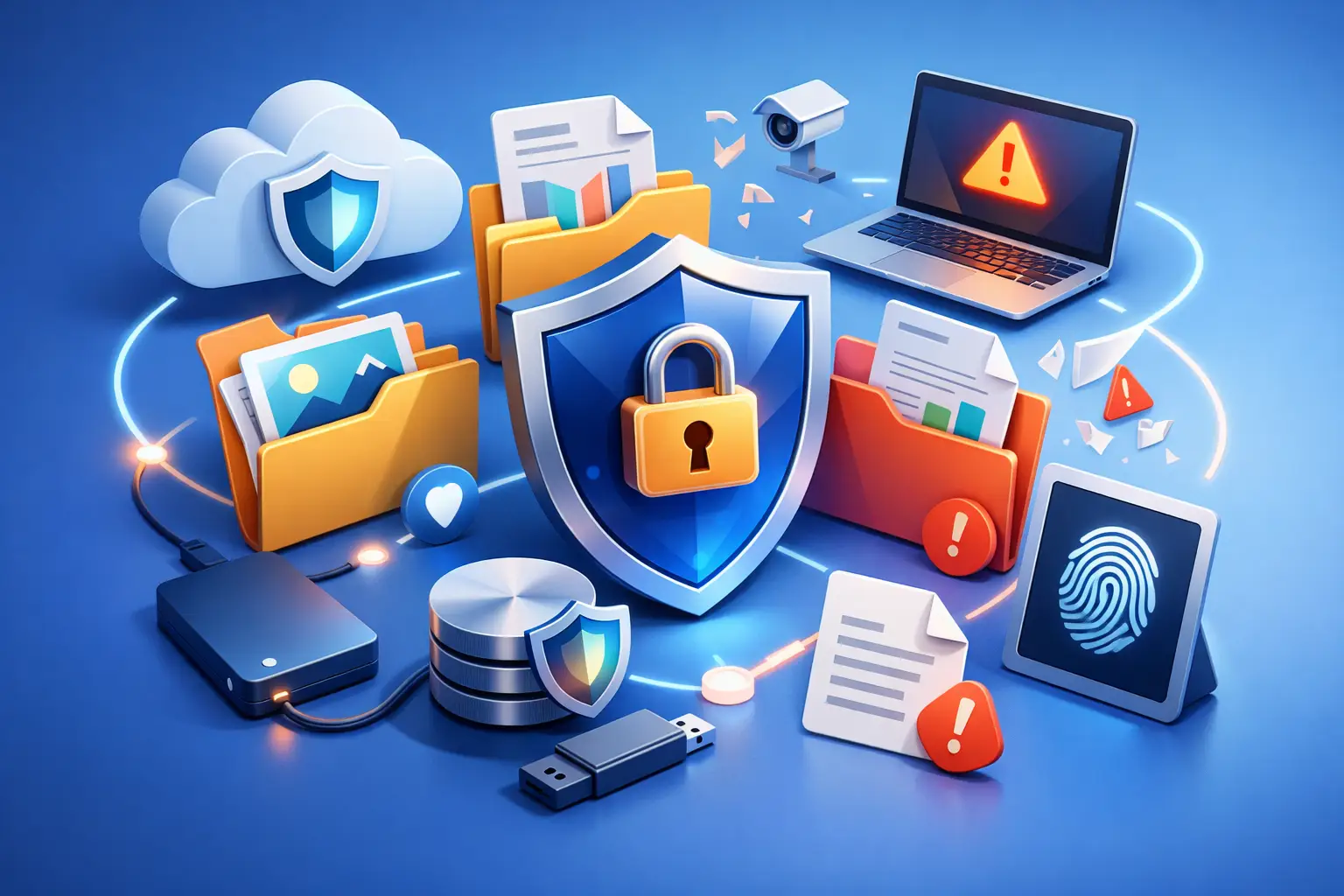
A missing folder is rarely just a missing folder. It can be a client deliverable, tax record, semester project, family photo collection, or the only current copy of a working file. The best data loss prevention approach protects those files before an accidental deletion, broken device, bad share setting, or ransomware event turns into a stressful recovery problem.
For individuals and small teams, data loss prevention does not need to mean a complicated IT project. It means creating a practical system that keeps important files available, limits who can change them, and gives you a clear way back when something goes wrong.
Best Data Loss Prevention Starts Before an Incident
Data loss prevention, often shortened to DLP, is the practice of reducing the chance that important information is lost, exposed, overwritten, or sent to the wrong person. Backups are part of it, but they are not the whole answer.
A good approach covers three questions. Can you still access a file if a device fails? Can you restore it if someone deletes or overwrites it? Can you control who sees it while you are sharing it?
The answers matter because common file problems are usually ordinary, not dramatic. A freelancer replaces the wrong design file. A student loses a laptop. A team member shares a folder too broadly. A synced folder carries an accidental deletion across every connected device. Each event requires a different safeguard.
Identify the Files That Need Protection First
You do not have to treat every file the same way. Start by identifying the files that would be most difficult, expensive, or impossible to replace. For a household, that may include photos, identity documents, financial records, and legal paperwork. For a professional, it may include client materials, contracts, source files, invoices, and current project folders.
Consider both the value of a file and the effect of losing access to it. A large video archive may consume the most storage, while a small spreadsheet containing business records may create the bigger disruption. This helps you choose the right storage capacity and protection level instead of guessing.
It also helps to organize files by purpose. Keep personal records, active work, shared projects, and long-term archives in clearly named folders. Simple organization reduces mistakes when you upload, share, restore, or remove files. A file you can find quickly is easier to protect.
Decide What Must Be Restorable
For each high-value folder, ask how far back you may need to recover. If you edit project files every day, recent version history can be more valuable than a single monthly backup. If you keep tax documents or final client approvals, a stable archive may be the priority.
Version history protects against changes that look legitimate at first. You may save over the wrong document, crop the original photo, or accept an edit that needs to be reversed later. The ability to restore an earlier version gives you room to correct the mistake without rebuilding the file from scratch.
Build Protection in Layers
The strongest file protection uses more than one safeguard. That does not mean buying every security tool available. It means covering the most likely failure points with controls that are easy enough to use consistently.
First, keep a protected cloud copy of important files. Cloud storage lets you access files from another device if your computer is lost, damaged, or unavailable. It also keeps critical documents from living on one hard drive alone. For irreplaceable files, maintaining an additional backup copy in a separate location provides another layer of protection.
Second, use version history where it is available. Cloud syncing is useful, but syncing alone is not a backup strategy. If a file is deleted or corrupted, that change can sync as well. Version history and file restoration create a recovery window, so you can bring back an earlier copy when needed.
Third, control access carefully. Every shared folder should have an owner, a purpose, and the narrowest permission level that still allows work to move forward. A collaborator who only needs to review a document may not need permission to edit, delete, or re-share it.
Finally, protect the account that controls your files. Use a unique, strong password and enable multi-factor authentication when available. Review connected devices periodically, especially after replacing a phone, leaving a shared workspace, or using a public computer. Storage security is only as useful as the account access behind it.
Use Secure Sharing Without Losing Control
Sharing is where useful collaboration can become accidental exposure. Email attachments create scattered copies that are difficult to update or remove. An open link can be forwarded beyond the people you intended to reach. A shared folder with broad editing rights can lead to unplanned changes.
A better method is to share from one controlled location. Use password-protected links for sensitive files, set expiration dates for temporary access, and choose view-only permissions when editing is unnecessary. When a project ends, remove access rather than assuming an old link will stay private forever.
For teams, granular permissions matter even more. Not everyone needs access to every folder. Separate client workspaces, finance records, operational documents, and internal resources so each person can work with the files relevant to their role. Activity tracking can also help administrators understand when files were accessed, changed, or shared.
This is not about creating friction for trusted people. It is about making access intentional. Clear permissions prevent confusion and protect both the file owner and the collaborator.
What to Look for in Data Loss Prevention Storage
The best data loss prevention solution depends on how you work. A student storing class notes has different needs than a creative team transferring large media files or a small business managing client records. Still, a dependable cloud storage service should make the essential protections visible and manageable from one dashboard.
When comparing options, look for these practical capabilities:
- Encrypted storage that protects files while they are stored and transferred.
- Version history and restoration tools that help recover deleted or overwritten files.
- Cross-device access, so files remain available from your desktop, tablet, or phone.
- Password-protected and expiring share links for files that should not remain open indefinitely.
- Granular permissions, team workspaces, and activity visibility when multiple people collaborate.
Capacity and speed also matter. A 2GB plan may be enough for essential documents, while photographers, video creators, and project teams may need more room and faster transfers. Do not choose capacity based only on today’s folder size. Leave room for new projects, backups, and older versions that may be needed later.
Cloud8USA is designed around this practical balance: encrypted cloud storage, browser-based file management, cross-device access, controlled sharing, and plan levels that can grow from simple personal storage to team workspaces and administrative controls.
Make Data Protection Part of Your Routine
A system only works when it becomes normal. Create a simple routine for saving active work to your protected storage instead of waiting until a device is full or a project is finished. For client work, establish one shared project folder as the current source of truth. For personal files, upload new photos and important documents on a regular schedule.
Review shared access when circumstances change. Remove former collaborators, expire temporary links, and check whether folders are still assigned the right permission level. A quarterly review is often enough for individuals and small teams, while active businesses may need a more frequent check.
It is also wise to test recovery before you need it. Restore a noncritical file version, confirm you can access your account from another device, and make sure the people responsible for shared folders understand their roles. A recovery process is far more reassuring when you know it works.
Protect Files Without Making Work Harder
The goal is not to build a maze of rules around every document. It is to make safe choices the easiest choices: organized folders, protected storage, controlled sharing, clear permissions, and a way to recover from mistakes.
Your files support your work, memories, and plans. Give them a home where access stays in your hands and recovery remains possible when the unexpected happens.