A shared project folder disappears just before a client review. A laptop is stolen with tax records saved on the desktop. A ransomware attack encrypts files that were syncing normally moments earlier. These situations reveal why file sync versus backup is not a technical detail. It determines whether you can keep working, restore an earlier file, or recover information that is otherwise gone.
Both tools can store files in the cloud and make them available across devices. But they serve different jobs. Sync keeps current files aligned. Backup preserves recoverable copies so you can go back when something goes wrong. For most people and teams, reliable file protection requires understanding where each one helps and where it does not.
File Sync Versus Backup: The Core Difference
File sync is designed for access and collaboration. When you add, edit, move, or delete a file in a synced folder, those changes are reflected in the connected location or devices. The goal is to give you the current version of your work wherever you need it.
That makes sync useful for a freelancer moving between a home computer and a client meeting, a student opening class materials from a tablet, or a team sharing active project folders. Everyone with the right permissions can work from the same current files rather than emailing copies back and forth.
Backup has a different purpose. It creates a separate recovery point for your files, often at a specific time or on a schedule. If the original file is deleted, corrupted, overwritten, or lost with a device, a backup can provide an earlier copy to restore.
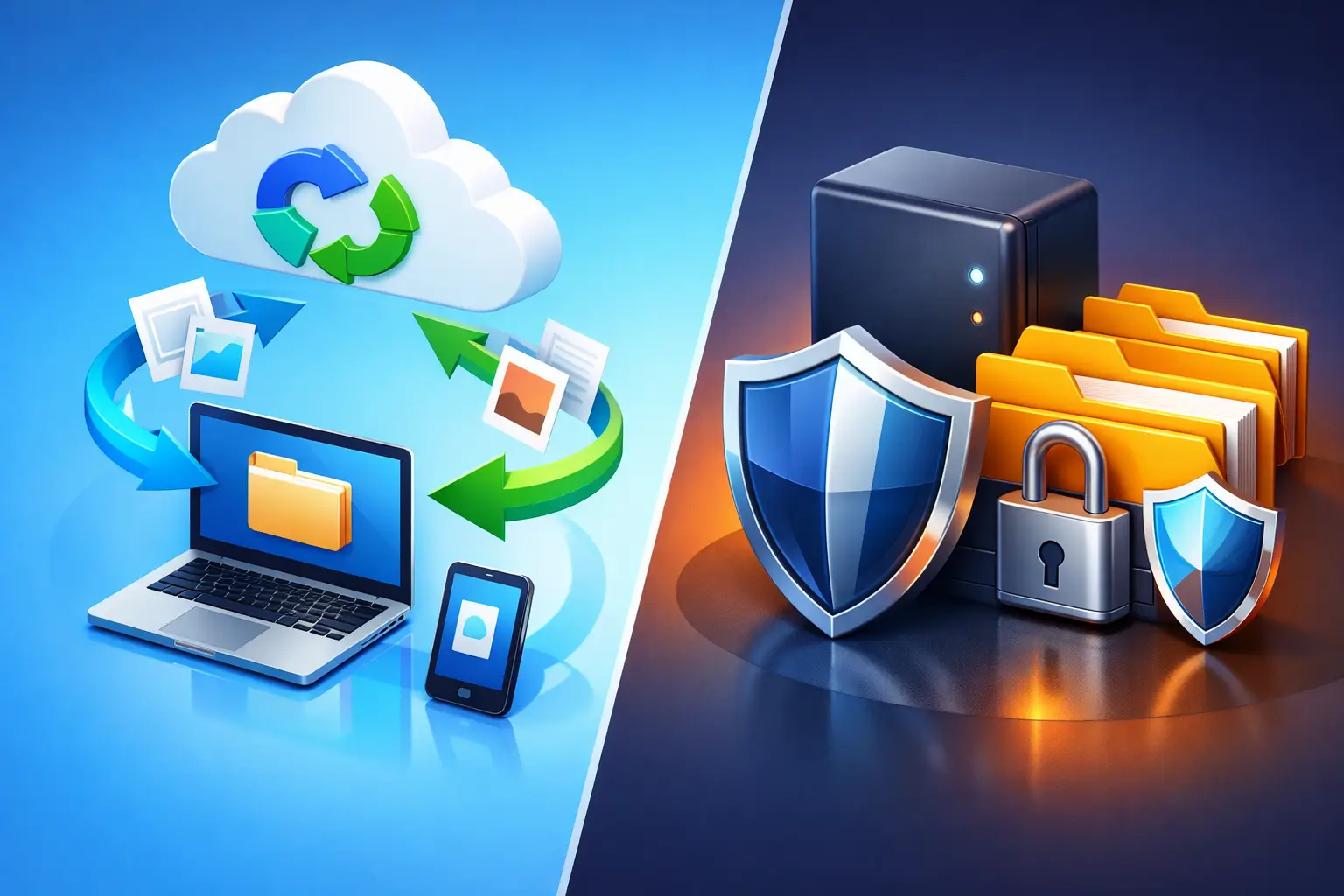
The simplest way to remember the difference is this: sync follows change, while backup protects against bad change.
What Sync Does Well
Sync is built for everyday availability. It helps keep the latest version of a presentation, photo collection, invoice folder, or design project accessible from more than one device. It can also reduce confusion when collaborators need one shared source of truth.
A cloud storage dashboard is especially useful when you want to organize folders, control who can view or edit them, and share a file without attaching it to an email. For active work, convenience matters. The easier it is to access the correct file, the less likely people are to create scattered, outdated copies.
What Backup Does Well
Backup is built for recovery. It gives you a way to retrieve files from before an accident, hardware failure, or security incident. A good backup strategy separates the recovery copy from the version you use every day, so one bad event does not automatically affect everything.
This distinction matters because a synced deletion can be exactly what the system is supposed to do. If you delete a file on one connected device, sync may remove it from the other connected locations as well. That is efficient when the deletion was intentional. It is not helpful when the wrong folder was selected.
Why Sync Alone Can Leave Gaps
Sync is not unsafe. It is simply not the same as a complete recovery plan. The risk appears when users assume that having files in more than one place automatically means they are backed up.
Consider a few common situations. You overwrite a contract with the wrong draft. A collaborator removes a folder while cleaning up a workspace. Your computer saves a corrupted version of a file. Malware encrypts the files it can access, and those encrypted versions sync to connected storage. In each case, the most current synced copy may be the problem rather than the solution.
Version history can reduce this risk by letting you restore an earlier version of a changed file. Recycle bins and deleted-file recovery periods can help, too. But neither should be treated as unlimited protection. Version history may have plan-specific limits, retention windows, or restrictions on what can be restored. Deleted files may only remain recoverable for a limited time.
For important records, ask a direct question: if this file changed or vanished today, could I recover the version I need next month? If the answer depends on a short retention window or on remembering to act quickly, add a dedicated backup process.
When You Need Sync, Backup, or Both
The right setup depends on how you use your files. You may only need simple sync for low-risk material that is easy to replace, such as temporary downloads or copies of public documents. Even then, keeping folders organized and permissions controlled helps prevent accidental changes.
You need backup when files would be costly, stressful, or impossible to recreate. Think family photos, scanned identification, tax documents, customer records, original media, business financials, research, and completed project work. If losing it would interrupt your life or work, treat it as a recovery priority.
Most professionals and small teams need both. Sync supports the work in progress. Backup protects the work from mistakes and loss. A marketing team, for example, can sync active campaign assets so everyone sees current files while maintaining recoverable copies of approved designs, source materials, and final deliverables.
The same approach works for personal storage. Keep current documents and photos available across your devices, but preserve copies that are not dependent on every change syncing instantly.
Build a Practical File Protection Plan
You do not need an IT department to make smarter decisions about file recovery. Start with the files that matter most and build outward.
- Identify your irreplaceable files. Separate critical records, original work, and personal memories from files you can download or recreate. This helps you focus storage capacity and recovery planning where it counts.
- Use sync for active folders. Put files you use regularly in organized folders that are easy to access from your approved devices. For shared work, set permissions based on what each person actually needs: view-only access for reviewers, editing access for contributors, and administrative control for owners.
- Maintain an independent backup copy. Keep at least one recovery copy that is not simply another synced view of the same live folder. The exact method can vary, but the principle is consistent: a mistake in your day-to-day workspace should not erase every available copy.
- Confirm version history and retention settings. Know how long deleted files and previous versions are available. Set a calendar reminder to review these details before a major project, annual tax season, or a device replacement.
- Test a restore before you need one. Choose a noncritical file, locate an earlier version or backup copy, and restore it. A recovery plan is only dependable when you know where the files are, who can access them, and how long the process takes.
For teams, this plan should also include ownership. Decide who manages shared folders, who can change access, and what happens when a contractor or employee leaves. Granular permissions and activity tracking can make that work easier without turning file management into a complicated process.
Security and Access Matter in Both Cases
A backup that no one can access during an emergency is not very useful. A synced folder that everyone can edit is also a risk. File protection involves availability, but it also involves control.
Use strong, unique account credentials and protect access to devices that can open or sync sensitive files. Review shared links and folder permissions regularly, especially for client work, financial records, and internal documents. Password-protected or expiring shares can help limit exposure when files must be sent outside your organization.
Choose storage that gives you clear control over your files, devices, sharing settings, and account access. Cloud8USA, for example, is designed to make organization, sharing, permissions, and version recovery manageable through a browser-based dashboard. The best system is one your household or team will actually use consistently.
Common Questions About File Sync and Backup
Is cloud storage automatically a backup?
Not always. Cloud storage can support backup, but a synced cloud folder may mirror deletions, overwrites, or corrupted changes. Check whether your setup creates independent recovery copies and how long previous versions remain available.
Can version history replace backup?
Version history is valuable, particularly for restoring a recent edit. It may not replace backup if retention is limited, if an entire account is affected, or if you need copies preserved for a long period. Think of version history as a recovery layer, not a reason to ignore backup planning.
Should I back up files that are already synced?
Yes, if those files are important. Sync gives you current access. Backup gives you a path back. Using both protects against a wider range of everyday errors, device problems, and security incidents.
Your files do not need a complicated system. They need a clear one: active work where you can reach it, recovery copies you can trust, and access controls that remain in your hands. Set aside a few minutes to test one restore this week. That small step can make a difficult day much easier to recover from.