A missing client file, an outdated contract sent by mistake, or a folder full of photos with names like IMG_4821 can turn a normal day into a frustrating search. Good file management prevents those small problems from becoming lost time, missed deadlines, or unnecessary security risks. It gives you a clear place for what matters and control over who can see it.
For individuals, that may mean keeping tax records, family photos, school documents, and device backups in order. For freelancers and teams, it means finding the current project asset, sharing it with the right person, and knowing that sensitive information is not sitting in the wrong folder. The goal is not to create a complicated system. It is to build one that works when you are busy.
What File Management Should Actually Do
File management is the practice of storing, naming, organizing, protecting, and retrieving digital files. It also includes deciding how files are shared, how long they should be kept, and what happens when someone changes or deletes them.
A useful system answers a few practical questions quickly: Where does this file belong? Which version is current? Who has access? Can I find it from another device? If you cannot answer those questions in seconds, your storage may be holding files without truly managing them.
Cloud storage makes this easier because your files can be available through a browser on desktop, tablet, or mobile. But storage capacity alone does not solve disorganization. A 2TB account can become just as difficult to use as a crowded desktop if folders, permissions, and naming habits are unclear.
The right level of structure depends on how you work. A student may need folders by course and semester. A photographer may organize by client, shoot date, and deliverable. A small business may separate finance, operations, HR, and active client projects. Use a structure that reflects your real work, not a system so elaborate that no one follows it.
Start With a Folder Structure You Can Maintain
The best folder structure is predictable. When a file arrives, you should know where it goes without stopping to think through several possible locations. Start with a small number of top-level folders, then add detail only where it makes retrieval easier.
For personal files, top-level folders might include Personal Records, Photos, School, Household, and Backups. A professional setup may use Clients, Internal Operations, Finance, Marketing, and Archive. Within a client folder, you might create folders for Agreements, Source Files, Working Files, Deliverables, and Reference.
Keep active work separate from completed work. This is one of the simplest ways to reduce clutter. An Active Projects folder gives current files a clear home, while an Archive folder keeps past projects available without mixing them into daily work. Set a recurring reminder, perhaps once a month or at the end of a project, to move finished work out of active folders.
Avoid creating folders that differ only slightly in meaning, such as “Marketing,” “Marketing Files,” and “Marketing New.” Those names force people to guess. If a folder needs a date or status, make it explicit: “2026 Marketing Campaigns” or “Client A – Awaiting Approval.”
Use File Names That Explain Themselves
A file name should tell you what it is before you open it. Descriptive names reduce reliance on memory and make search results much more useful. Compare “final.pdf” with “Smith-Website-Proposal-2026-08-21.pdf.” The second file can still be understood months later, even outside its original folder.
A reliable naming pattern often includes the project or client, the document type, the date, and a version when needed. Dates work best in year-month-day format, such as 2026-08-21, because they sort correctly. For files that change frequently, use clear versions like v01, v02, and v03 rather than “final,” “final-final,” and “final-use-this-one.”
There is a trade-off here. Overly detailed names take longer to create and can become hard to scan. Use more detail for important records, deliverables, and shared work. For a quick personal note, a simple name may be enough.
Protect Access Without Slowing Work Down
Organization and security belong together. A well-organized folder is safer because you can apply access rules to a logical group of files instead of sharing items one at a time with inconsistent settings.
Start by separating private files from files intended for collaboration. Personal identification, financial documents, contracts, employee records, and original project materials may need tighter access than general reference documents. Store them in folders that are not casually shared with a broad group.
When sharing is necessary, give people only the access they need. View-only access is useful for clients reviewing a proposal or stakeholders checking a report. Edit access makes sense for active collaborators. Administrative controls should remain with the person responsible for the workspace.
For sensitive or time-limited sharing, password-protected and expiring links add useful safeguards. An expiration date is especially helpful when sending files to a client, contractor, or vendor for a specific purpose. It reduces the chance that an old link remains available long after the project ends.
Permissions should be reviewed, not set once and forgotten. A team member may change roles, a contractor may finish an assignment, or a client engagement may close. A short access review at the end of each project can prevent former collaborators from retaining unnecessary access.
Make Version History Part of Your Safety Net
A file can be in the correct folder and still be at risk if the latest edit overwrites something important. Version history gives you a practical way to recover an earlier copy when a change was accidental, a file was saved incorrectly, or the wrong asset was uploaded.
This matters most for collaborative work. Multiple people may edit presentations, spreadsheets, design files, or project documents. Without a reliable history, teams often create separate copies to feel safe. That leads to confusion about which copy is authoritative.
Use one working file whenever possible, then rely on version history for recovery. If you need to create a major alternative, label it clearly as a separate concept or approved version. This keeps normal edits from producing a trail of duplicate files while preserving meaningful decision points.
Version history is not a replacement for thoughtful retention. Important final records may still need to be preserved in a dedicated completed-project or archive folder. Think of history as protection during the work process, while archival folders preserve the record after the work is done.
Build Habits That Keep Your Storage Useful
File systems break down when every task requires a large cleanup effort. Small habits are more reliable. Save new files to their proper location right away. Rename downloaded documents before they get buried in a generic downloads folder. Move completed work into the archive while the project details are still fresh.
A brief weekly review can be enough for most people. Clear temporary files, check that important uploads completed, and make sure active folders still reflect current priorities. Teams may benefit from a monthly review of shared folders, permissions, and storage use.
It also helps to decide what does not belong in your main workspace. Duplicate downloads, temporary exports, and outdated drafts can consume storage and make search results noisy. You do not need to delete every older file. Keep what has legal, financial, personal, or creative value, then remove what no longer serves a purpose.
For larger collections, search and filters are valuable, but they work best after the basics are in place. Search can find a phrase in a document or a keyword in a filename. It cannot reliably fix files that were uploaded with vague names, placed in random folders, and shared without a clear owner.
Choose Storage Features for the Way You Work
Your storage plan should match both the amount of data you keep and the control you need. A small personal collection may only require secure storage and access across devices. A creator handling large media files may need higher transfer speeds, previews, restoration options, and more capacity. Teams often need shared workspaces, granular roles, activity tracking, and administrative oversight.
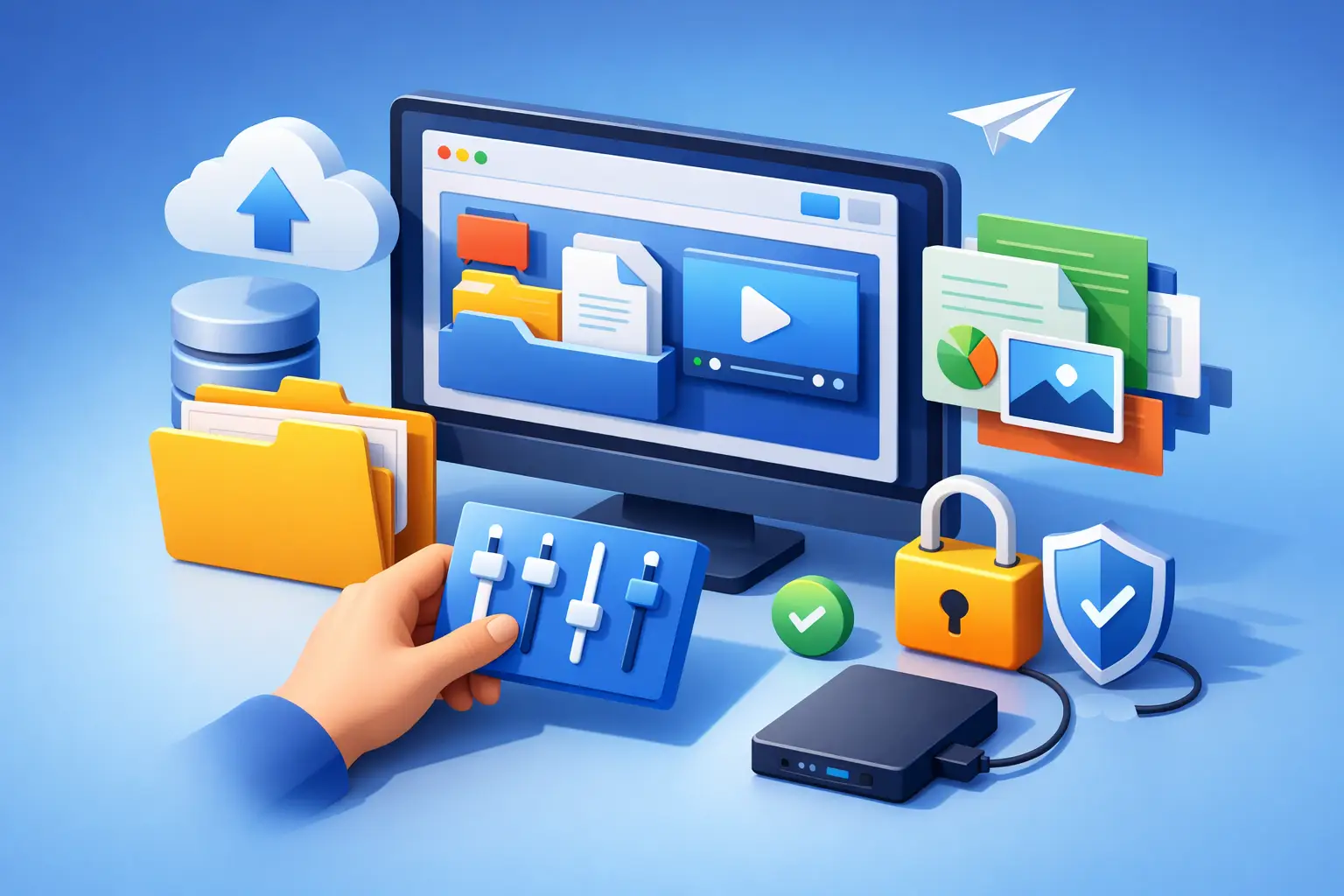
Do not pay for complexity you will not use, but do not treat privacy and recovery as optional when files are valuable. The right service should let you access files through a simple dashboard while keeping control over devices, sharing, and permissions in your hands. Cloud8USA is designed around that balance, from everyday storage to team-level controls.
A dependable file management system is not the one with the most folders or the strictest rules. It is the one that helps you find the right file, protect it properly, and share it with confidence. Start with one folder that causes friction today, give it a clear structure, and let that first improvement make the next one easier.