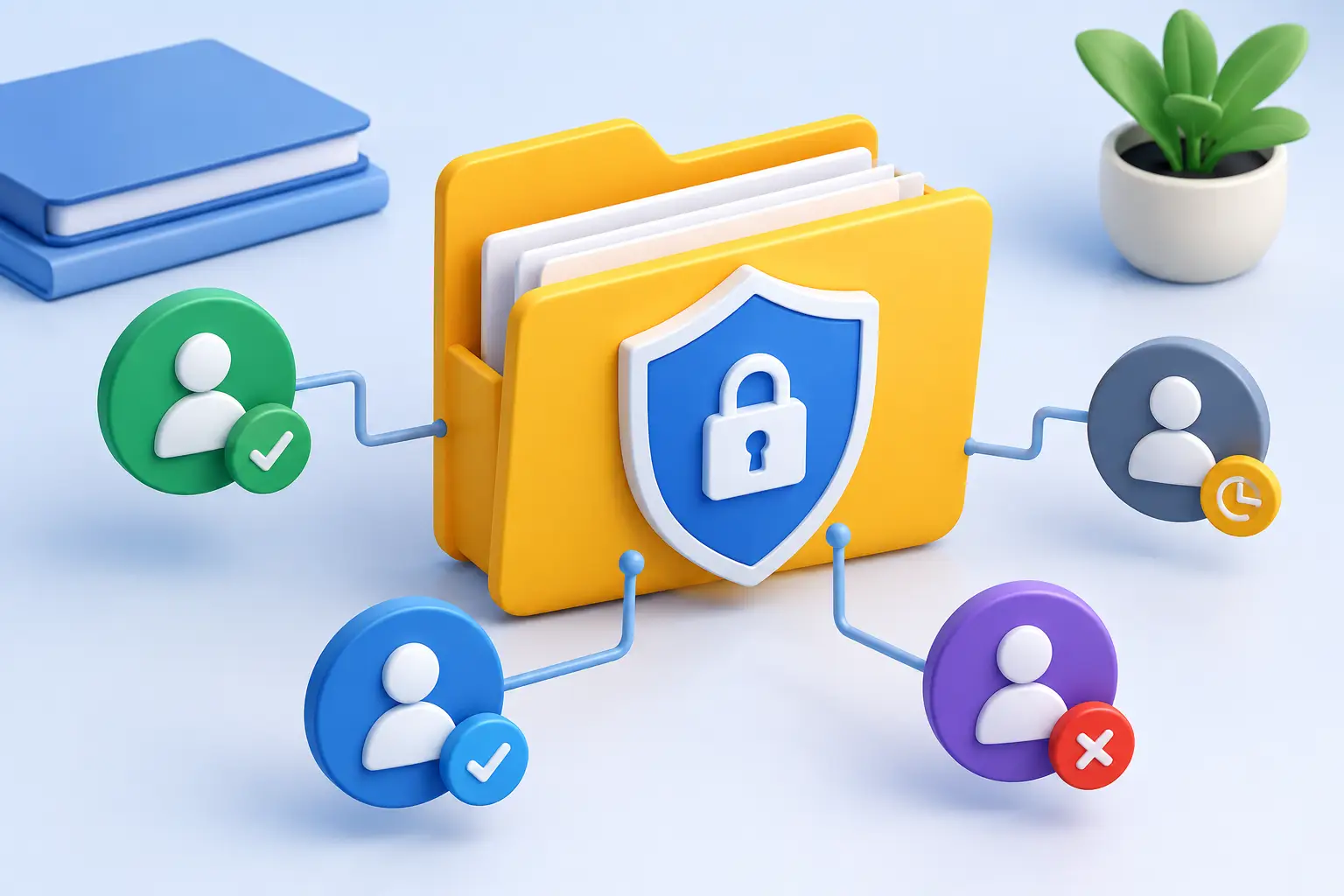
A shared folder can make a project move faster, or expose files to the wrong people with a single misplaced permission. When you set folder access controls, you decide who can view, upload, edit, download, share, or manage the files inside. That control protects personal records, client work, creative assets, and internal business documents without making collaboration difficult.
The goal is not to lock down every folder so tightly that no one can work. It is to give each person the access they need, for as long as they need it, and no more. A clear folder permission strategy keeps your files private while helping the right people stay productive from any device.
Start With the Folder’s Purpose
Before inviting anyone, define what the folder is for. A folder containing tax documents, employee records, contracts, or unreleased client materials needs much tighter controls than a folder used to collect event photos or routine project references.
Ask two simple questions: Who genuinely needs access to these files? What actions do they need to take? A freelance designer may need to upload and edit campaign assets, while a client only needs to review final versions. Giving both people the same level of access creates unnecessary risk.
It also helps to separate folders by sensitivity and workflow. Rather than putting every project item into one broad shared folder, create a private working folder, a collaborator folder, and a client-delivery folder. This approach makes permissions easier to understand and reduces the chance that someone sees a draft, financial document, or internal note that was never intended for them.
Choose Permissions That Match the Job
Folder controls work best when they reflect real responsibilities. Most cloud storage platforms offer several permission levels, although names can vary. The principle stays the same: give the least amount of access that allows the work to get done.
A viewer can open files but cannot make changes. This is useful for clients reviewing documents, students accessing class materials, or family members viewing shared photos. An editor can add, change, and organize files, which suits active project contributors. A manager or owner can usually change permissions, invite others, move content, and sometimes delete the folder.
Be especially careful with permissions that allow someone to share a folder onward. A person may need to edit a document without needing authority to invite an entire outside team. If the platform lets you separate editing from sharing or administrative control, use that distinction.
For sensitive folders, avoid broad roles such as “anyone in the organization” unless every member truly needs access. Convenience can be valuable, but it should not override confidentiality.
How to Set Folder Access Controls Step by Step
The exact buttons will differ by provider, but a secure setup follows a consistent process.
First, open the folder from your cloud storage dashboard and select its sharing or permissions settings. Confirm that you are adjusting the folder itself, not just one file inside it. Folder-level settings are helpful because they can apply to the contents automatically, keeping a project organized as new files are added.
Next, invite specific people using the email address connected to their account. Named invitations give you a clear record of who has access and make it easy to remove a person later. Public links are faster, but they require more care because a link can be forwarded beyond the intended recipient.
Then, assign the lowest practical role. Start with view-only access when someone only needs to read, review, or download. Upgrade to editing access only when the person needs to contribute. Reserve full folder management for a small number of trusted owners or administrators.
Finally, review the settings before you send the invitation. Check whether recipients can share the folder, download files, delete content, or access version history. A quick review can prevent a rushed permission choice from becoming a larger problem later.
Use Share Links Carefully
Share links are useful when you need to send files quickly to a client, vendor, or group. They can also be less controlled than invitations tied to individual accounts. If a recipient forwards an unrestricted link, anyone who receives it may be able to open the folder.
For documents that should remain private, use password-protected links when available. Share the password separately from the link, rather than placing both details in the same message. Expiring links are also a smart choice for short-term reviews, file delivery, and event-based collaboration.
Think of every link as a temporary key. If the work is complete, the approval period has ended, or a contractor has moved on, disable the link. You do not need to wait for a problem to remove access that is no longer needed.
Build Access Controls Into Your Workflow
The safest permission setup is one your team can repeat without confusion. Create a simple naming and folder structure that shows which folders are private, internal, shared with clients, or ready for final delivery. When the folder purpose is obvious, people are less likely to place sensitive files in the wrong location.
For example, a small marketing team might organize each client project with a private “Internal Planning” folder, an “Active Production” folder for assigned contributors, and a “Client Review” folder with view-only access. The client gets what they need without visibility into internal budgets, strategy notes, or unfinished work.
For individual users, the same idea applies. Keep personal records, household documents, photo archives, and shared family files in separate folders. A relative helping with one insurance form does not need access to every financial record you store.
Cloud8USA gives users a browser-based dashboard to organize folders and manage permissions without installing extra software. That simplicity matters when access needs to change quickly, whether you are sending a portfolio to a prospective client or updating roles for a growing team.
Review Permissions Before They Become a Problem
Access controls are not a one-time setup. Projects end, employees change roles, clients rotate contacts, and shared folders gradually collect people who no longer need to be there. A regular review keeps old permissions from becoming invisible security gaps.
For active business folders, review access at major project milestones or at least once per quarter. For personal folders, review permissions after major life events, such as changing jobs, moving homes, or switching financial providers. Look for former collaborators, duplicate invitations, old public links, and people with management rights they no longer need.
Version history and activity tracking can add another layer of confidence. If a file is changed or removed unexpectedly, version history can help restore an earlier copy. Activity records can also help identify when a folder was accessed or modified, making it easier to investigate an issue without guessing.
Avoid These Common Permission Mistakes
Many access problems start with good intentions. Someone needs a file quickly, so an owner creates a broad link. A teammate needs to make one update, so they receive full administrative access. A project ends, but nobody remembers to remove the external contractor.
The most common mistakes include:
- Giving edit access when view-only access would work
- Allowing collaborators to invite others without a clear reason
- Using permanent public links for temporary file delivery
- Keeping departed employees, vendors, or clients in shared folders
- Mixing private documents and external-facing materials in one location
None of these mistakes means sharing files is unsafe. They simply show why clear roles and periodic reviews matter. Security becomes much easier when access decisions are intentional instead of rushed.
When More Restriction Is Not Better
There is a trade-off. Extremely limited permissions can slow a team down if people must request access every time they need to upload a file or respond to feedback. The answer is not to make every folder open. It is to create the right shared workspace for the work at hand.
A creative team producing daily assets may need shared editing access inside an active production folder. A client folder may need only view and download permissions. Finance, HR, legal, and executive folders often require a much smaller access group. The right level of control depends on the sensitivity of the files, the duration of the collaboration, and the consequences if content is changed or shared incorrectly.
Good folder access controls should feel almost invisible to the people doing authorized work. Set clear roles, protect the folders that matter most, and make time to remove access when the work is done. Your files stay available to the people you trust, while your privacy remains where it belongs: in your hands.