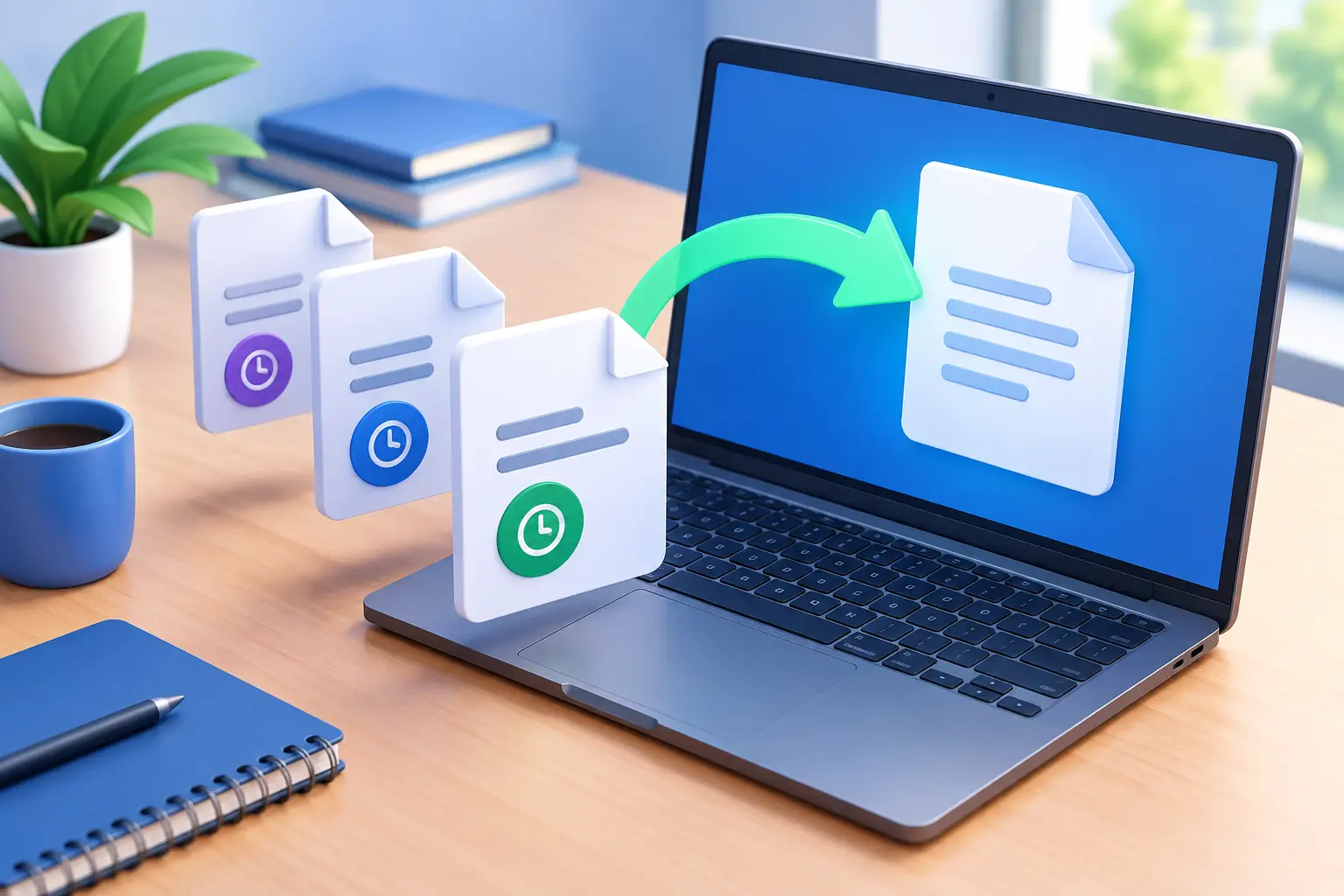
A spreadsheet is overwritten five minutes before a client call. A designer saves an experimental edit over the approved image. Two teammates revise the same proposal, and the wrong draft becomes the current one. These are the moments when knowing how to restore file versions turns a stressful mistake into a manageable fix.
Version history keeps earlier copies of a file available after changes are saved. Instead of relying on a single current file, you can review previous points in its history and bring back the one you need. It is a practical safety net for everyday work, personal records, creative projects, and shared folders.
How to restore file versions safely
The safest restoration process starts with a pause. Do not keep editing the file you are trying to recover. Every new save can make it harder to understand which version contains the correct content, especially when several people have access.
Open the file in your cloud storage dashboard and look for its version history, activity, or previous versions option. The exact label varies by service and plan, but the goal is the same: find the saved copies associated with that file. You should see versions organized by date and time, and in some cases by the person who made the change.
Review the available versions before selecting one. For documents, check the key paragraphs, figures, or tracked changes that matter. For images, video, and design files, use a preview when available and confirm the correct edit, crop, or export. File names alone are not always enough, because a file can keep the same name while its contents change completely.
When you find the right version, choose whether to restore it as the current file or download a copy first. Restoring makes the selected version the active version in the folder. Downloading a copy is often the better choice when you need to compare files, preserve the current work, or get approval from a teammate before replacing anything.
After the restoration, open the recovered file and check it carefully. Confirm that it contains the expected content, opens properly, and has the correct permissions for anyone who needs it. If the file is shared, let collaborators know which version is now current so they do not continue working from an outdated local copy.
Restore versus recover: know the difference
Restoring a version means returning a file to an earlier saved state. Recovering a deleted file means retrieving an item that was removed from a folder or moved to a trash area. The two actions solve different problems, though both are essential parts of file protection.
If the file still exists but contains the wrong information, start with version history. If it is missing entirely, check deleted files or the trash first. If a whole folder disappeared, review recent activity and shared-folder permissions before assuming the files are permanently gone.
Choose the right version, not just the oldest one
The oldest version is rarely the best version. Your goal is to find the last known good copy, which may be from ten minutes ago rather than last month. Restoring a much older file can accidentally remove valid work completed since then.
Use the timestamp as your first clue. Then consider what was happening when the file changed. Was a teammate updating pricing? Were you trying a new edit? Did a sync issue replace a newer local document with an older one? Context helps you identify the version that existed immediately before the unwanted change.
For shared work, it helps to ask one direct question before restoring: what needs to be preserved? A proposal may need the earlier layout but the latest legal language. In that case, downloading both versions and merging the needed changes may be safer than a full rollback.
This is also why version history is not a replacement for good collaboration practices. Clear file ownership, folder permissions, and descriptive naming reduce confusion before it starts. Version history gives you a way back when people make mistakes, but prevention still saves time.
Protect current work before you restore
A restore action can be reversible in many systems, but you should not depend on that without checking. Before replacing the current version, create a safety copy if the file is important or has active edits. Rename it clearly, such as “Budget-current-before-restore” or “Campaign-design-review-copy.”
This small step gives you a reference point if the restored version is not quite right. It is especially useful for freelancers working with client feedback, students revising major assignments, and teams managing documents with multiple contributors.
For large media files, the trade-off may be time and storage. Keeping extra copies can use capacity and take longer to upload, particularly on slower connections. Still, a temporary copy is usually worth it when the file represents hours of work or a critical business record.
If you are working from more than one device, make sure syncing has finished before you restore. A laptop that reconnects later with an older local copy can create confusion or upload another unintended change. Check the latest activity in your storage dashboard, then let all active devices finish syncing before resuming edits.
Common situations where version history helps
Version restoration is valuable well beyond accidental overwrites. It can help when a document becomes corrupted after an interrupted save, when an incorrect template is applied, or when someone deletes important content inside a file without deleting the file itself.
It is also useful for creators. A photographer can return to an earlier image adjustment, a video editor can recover a project file before a sequence was changed, and a writer can bring back a stronger draft after an unhelpful rewrite. For personal files, it can mean recovering an earlier resume, tax worksheet, school paper, or scanned record without searching through old email attachments.
Teams gain another layer of control. When permissions allow several people to edit a shared folder, version history creates accountability around changes. Activity details can help clarify when a revision occurred and who made it, without turning a simple mistake into a blame exercise.
Cloud8USA plans with version history are designed for this practical kind of control: keep your files accessible through a browser-based dashboard, review what changed, and decide what should remain current. The right plan depends on how much storage, collaboration control, and restoration access your work requires.
Avoid the mistakes that make restoration harder
Do not repeatedly save over a file while trying to fix it. Do not assume a shared link gives you permission to restore content. And do not rely on a folder named “final” as proof that the file inside is the correct final version.
Instead, use meaningful file names when a project reaches a milestone, such as “Client-presentation-approved” or “Portfolio-selects-May.” Limit edit access to people who genuinely need it, and use view-only access when feedback does not require direct changes. Granular permissions help protect files before version history is needed.
For sensitive documents, remember that restoration is about availability, not only convenience. Keep account access secure, use strong unique credentials, and review devices and share settings regularly. A version can only protect your work if your account and folders remain under your control.
When version history may not be enough
Retention periods and available version counts can vary by storage service and subscription level. Older versions may eventually expire, and a version history feature may not cover every file type or action in the same way. Check your plan details before you need a recovery.
For records with legal, financial, or operational importance, maintain a separate backup practice in addition to version history. Keep copies according to your organization’s retention needs, and test that important files can be opened when needed. Version history is a powerful layer of protection, but it should be part of a broader file-management routine.
The best time to learn where your version history lives is not after a deadline has gone sideways. Take a minute to find it now, review your shared-folder permissions, and give your most important work a clear path back.