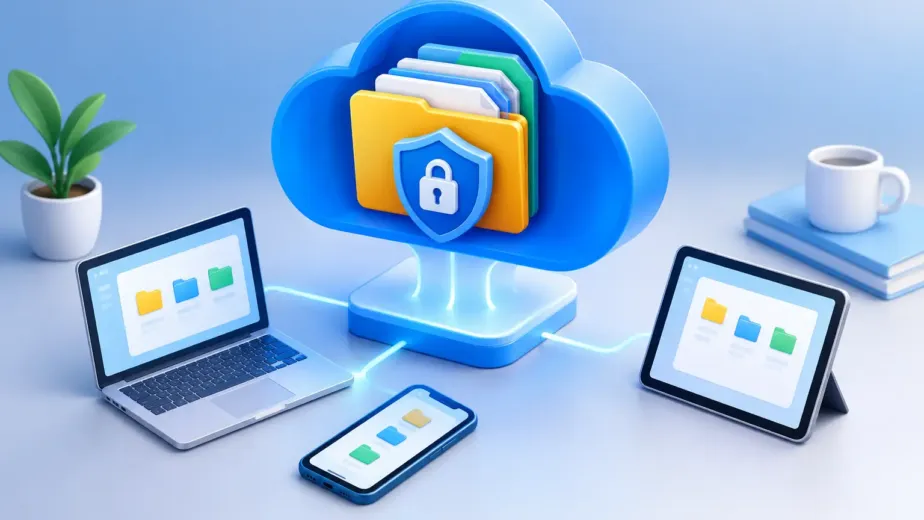

A missing contract five minutes before a client call. A folder of photos trapped on one computer. Three teammates editing different copies of the same proposal. These are not storage-capacity problems alone. They are workflow problems, and a cloud workspace is designed to solve them by giving your files one protected, accessible home.
For individuals and growing teams, the value is straightforward: you should be able to find what you need, work from the device in front of you, and decide exactly who can access each file. The right setup makes file management feel less like maintenance and more like control.
What Is a Cloud Workspace?
A cloud workspace is a browser-based environment where you can store, organize, access, share, and manage digital files. It brings documents, photos, videos, project assets, backups, and records into one central dashboard rather than leaving them scattered across laptops, email threads, external drives, and personal accounts.
Cloud storage is the foundation, but a workspace adds the working layer around it. That includes folders, search, previews, sharing settings, user permissions, activity visibility, and recovery options such as version history. Instead of simply placing a file online, you create a reliable system for how that file is used.
That distinction matters when files are important. A personal user may need quick access to tax documents and family photos from a phone. A freelancer may need a secure way to deliver final design files. A small business may need separate project folders, defined team roles, and a record of file activity. Each use case starts with storage, but it depends on control.
Why a Cloud Workspace Changes Daily File Management
The best file systems remove small points of friction before they become costly mistakes. When your files live in a single workspace, you spend less time asking where something is, which version is current, or whether a shared link is still active.
Access follows you, not one device
Work rarely stays on a single screen. You may begin a report on a desktop, review it on a tablet, and send it from a phone. With browser-based access, your workspace is available without carrying a particular computer or installing complicated software.
That does not mean every file needs to be available to everyone. A useful workspace lets you control devices and sessions while keeping your own files accessible when you need them. Convenience and privacy should work together, not compete.
Organization becomes a habit, not a cleanup project
A folder structure does more than make a dashboard look tidy. It reduces the chance that important work disappears into a vague folder named “New” or “Miscellaneous.” Create clear top-level folders for areas such as Personal Records, Clients, School, Finance, Projects, or Media. Within each one, use consistent naming that makes sense months later.
For example, a freelancer might organize a client folder by project and date, while a family may organize photos by year and event. There is no universal folder structure that works for everyone. The right one reflects how you look for files under pressure.
Search and file previews also matter. When you can identify a document or image without downloading it first, you make faster decisions and avoid creating unnecessary copies.
Sharing can be controlled instead of improvised
Email attachments are familiar, but they create version confusion quickly. They also make it difficult to revoke access after a file leaves your inbox. A cloud workspace gives you a more deliberate way to share.
For routine collaboration, shared folders can give the right people access to current materials. For one-time delivery, a secure share link can be a better fit. Password protection and expiration dates add useful guardrails when files contain sensitive information or should only be available for a limited period.
The trade-off is that stronger controls require a little planning. Before sharing, decide whether the recipient needs to view, download, edit, upload, or manage files. Giving every collaborator full access may be fast in the moment, but it can create avoidable risk later.
Security Is About Control, Not Just Storage
People often ask whether cloud storage is secure. The more useful question is whether you can clearly manage access throughout a file’s life.
Encryption helps protect files during transfer and storage. Secure infrastructure matters, too. But practical security also depends on decisions you make every day: using a strong, unique password, reviewing active devices, limiting folder permissions, and removing access when a project or working relationship ends.
A well-designed workspace puts those controls within reach. You should not need advanced IT knowledge to see who can access a folder, change a permission level, or disable an outdated share link. For teams, granular roles allow administrators to protect sensitive areas while still giving contributors the access they need to do their work.
Version history is another important safeguard. A file may be overwritten, changed by mistake, or replaced with the wrong draft. The ability to restore an earlier version can turn an ordinary error into a quick correction. It is not a replacement for thoughtful backups, but it provides valuable protection for active files.
Build a Workspace That Fits How You Work
The easiest way to get value from cloud storage is to begin with the files that create the most stress when they are unavailable. That might be client work, legal documents, class materials, a photo library, or operational records.
Start by moving a manageable set of files into clearly named folders. Avoid treating the workspace as a dumping ground from day one. A simple structure is easier to maintain and easier to expand as your needs grow.
Next, decide which files are private, which need to be shared, and which should be kept as backups only. This naturally shapes your permissions. A private personal folder should not use the same sharing settings as a project folder built for collaborators.
Finally, review your workspace periodically. Remove old links, confirm team access, and check that critical files are still organized where you expect them to be. A few minutes of upkeep is easier than sorting through years of digital clutter after something goes wrong.
Choosing the Right Capacity and Features
Storage needs are personal. Documents use relatively little space, while high-resolution photos, video, creative source files, and device backups can grow quickly. Choosing a plan only by the lowest price can lead to frequent cleanup or rushed upgrades. Choosing far more space than you use may not be necessary either.
Start with your current files, then account for the next year of growth. If you work with large media files or transfer projects often, faster transfer speeds can be as valuable as additional capacity. If you collaborate with clients or colleagues, features such as password-protected links, expiring links, team workspaces, activity tracking, and granular permissions may matter more than storage alone.
Individual users may only need secure access and basic sharing. Professionals often benefit from version history and higher transfer performance. Businesses managing sensitive files across several people should look for administrative controls, defined roles, and tools that make access easier to manage at scale. The right plan supports your workflow without forcing you into unnecessary complexity.
Common Questions About Cloud Workspaces
Can a cloud workspace replace an external hard drive?
It can reduce your dependence on one, especially for files you need from multiple devices. Still, some people prefer to maintain an additional local copy of irreplaceable files. The best approach depends on how critical the data is, how much storage you need, and whether you need access without an internet connection.
Is a cloud workspace useful for one person?
Yes. Collaboration is only one benefit. A single user can organize personal records, protect important documents, access files while traveling, share a folder with family, and keep photos or backups from living on only one device.
What should a small team set up first?
Create a shared folder structure, assign access based on each person’s role, and agree on simple file-naming rules. Then establish who can create share links and who is responsible for removing access when a project is complete. Clear habits are often more valuable than complicated processes.
Your files represent work, memories, commitments, and records that should not be difficult to reach or difficult to protect. Start with the folder you would be most concerned to lose, give it a clear place in your workspace, and build from there with the same control.