A ransomware attack rarely starts with a dramatic warning. It may begin with a realistic-looking invoice, a reused password, or a shared folder that has more access than it needs. Effective ransomware protection gives you a way to limit that damage and recover your important files without relying on luck.
For individuals, freelancers, and growing teams, the goal is not to turn everyone into a cybersecurity specialist. It is to create simple, repeatable controls around the files that matter: current backups, limited access, safer sharing, and a recovery plan that works when someone is stressed and short on time.
What ransomware does to your files
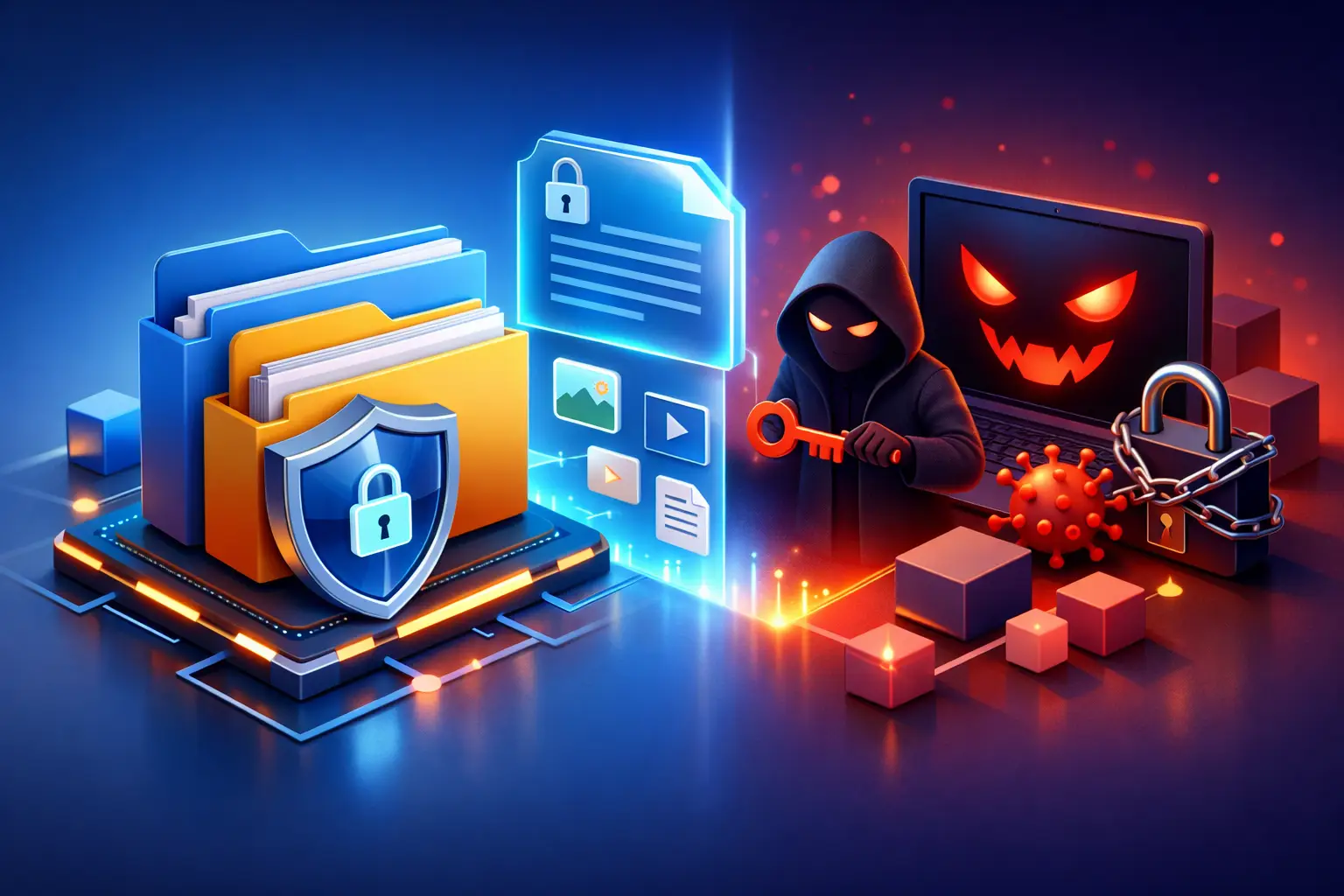
Ransomware is malicious software that blocks access to data, often by encrypting files so they cannot be opened. Attackers then demand payment in exchange for a decryption key. In some cases, they also copy sensitive files first and threaten to publish them if the victim does not pay.
The immediate problem is lost access. A project folder may become unreadable, family photos may be renamed with unfamiliar extensions, or a team may be unable to open documents needed for a client deadline. The larger problem is uncertainty. If ransomware reaches a synced storage location, a connected external drive, or a broadly shared folder, it can affect more than one device.
Paying a ransom does not guarantee recovery. Criminals may provide a key that fails, demand more money, or retain copied data after payment. That is why the practical focus should be on reducing exposure and preserving clean, recoverable copies of your files.
Ransomware protection depends on recoverable copies
A backup only helps if it is separate enough to survive the same incident. If every copy of a file is continuously connected, synced, or accessible through the same compromised account, encryption or deletion can spread quickly.
Keep more than one copy of critical files, and make sure at least one copy can be restored from an earlier point in time. For a student, that might mean protecting coursework and personal records. For a creative professional, it may include original media, client deliverables, contracts, and project files. For a small team, it can include operating documents, financial records, and shared workspaces.
Version history is especially useful here. When a file is changed, overwritten, or corrupted, version history can preserve an earlier version for restoration. It is not a substitute for a broader backup strategy, but it provides a practical safety net for accidental changes and incidents that are caught quickly.
The right retention period depends on how you work. A busy project team may need frequent versions and longer retention because files change throughout the day. A personal account may need less frequent backups but should still protect irreplaceable photos, documents, and records. The key is to decide before a problem occurs, not after.
Test restoration before you need it
A recovery plan is only proven when you test it. Choose a noncritical folder and restore a previous file version or backup copy. Confirm that the file opens correctly, that the right version is available, and that you know where restored files appear.
This small exercise also reveals gaps. You may find that a folder was never included in your backup routine, that a former employee still has access, or that a large media library will take longer to recover than expected. Those are manageable discoveries when nothing is urgent.
Reduce the ways ransomware gets in
Most ransomware incidents rely on an opening: a deceptive message, a weak credential, unpatched software, or a user with more permissions than necessary. You cannot eliminate every risk, but you can make the common paths much harder to exploit.
Start with account security. Use a unique, strong password for every important account and enable multi-factor authentication wherever it is available. Reused passwords are a major risk because a breach at an unrelated service can give attackers a working password to try elsewhere.
Be skeptical of unexpected attachments and sign-in requests, even when they appear to come from a familiar name. Before opening a file, pause and verify the sender through a separate channel if anything feels unusual. A message that creates urgency – especially one involving payment, account suspension, or an immediate document review – deserves extra attention.
Keep operating systems, browsers, antivirus tools, and business software updated. Updates can feel disruptive, but delaying them can leave known security issues exposed. For teams, set a straightforward policy for updates and designate someone to confirm that shared devices are following it.
Control access before sharing files
Convenient sharing should not mean open-ended sharing. Every person who can edit, download, or reshare a folder is another access point to manage. Permissions are not just an administrative feature. They are part of ransomware protection.
Give people the lowest level of access that still lets them do their work. A client reviewing a proposal may only need view access. A contractor may need access to one project folder rather than an entire workspace. When a project ends, remove access instead of assuming an old share link will remain harmless.
Password-protected share links and expiration dates help reduce exposure when files must be sent outside your organization. They are particularly useful for financial documents, creative previews, contracts, and materials that should not remain available indefinitely. Keep an eye on activity records as well. Unexpected downloads, new devices, or unusual sharing behavior may be an early warning that deserves investigation.
For businesses, granular roles make a meaningful difference. Administrators should be able to manage users, devices, and permissions without giving every employee the same level of control. This may add a little setup time, but it reduces the blast radius if one account is compromised.
Know what to do in the first hour
Speed matters when you suspect ransomware. Do not keep clicking through alerts or trying random fixes. If a device shows encrypted files, unfamiliar extensions, ransom notes, or sudden access failures, disconnect it from Wi-Fi, wired networks, and shared drives if you can do so safely. This can help prevent further spread.
Next, preserve information. Take photos or screenshots of the message, note the time you first noticed the issue, and identify the affected folders and accounts. Then contact your IT provider, security contact, or a qualified incident response professional. For a team, notify the person responsible for account administration immediately so access can be reviewed and compromised sessions can be ended.
Do not delete evidence, wipe devices, or restore everything at once unless your response team advises it. The priority is to understand what was affected, stop active access, and identify a clean recovery point. After that, reset passwords, review multi-factor authentication, revoke questionable share links, and check for unfamiliar users or devices.
If personal information, client data, or business records may have been exposed, legal and notification obligations can apply. The correct response depends on the type of data and where your business operates. Treat possible data theft as seriously as file encryption.
Build a file routine people will actually follow
Security measures fail when they are too complicated for everyday work. The most useful approach is a routine that fits naturally into how you save, organize, and share files.
Create clear folders for active work, completed work, and long-term records. Avoid storing everything in one shared location with broad edit access. Review your most important folders monthly: confirm backups are current, remove people who no longer need access, and check that recovery options are available.
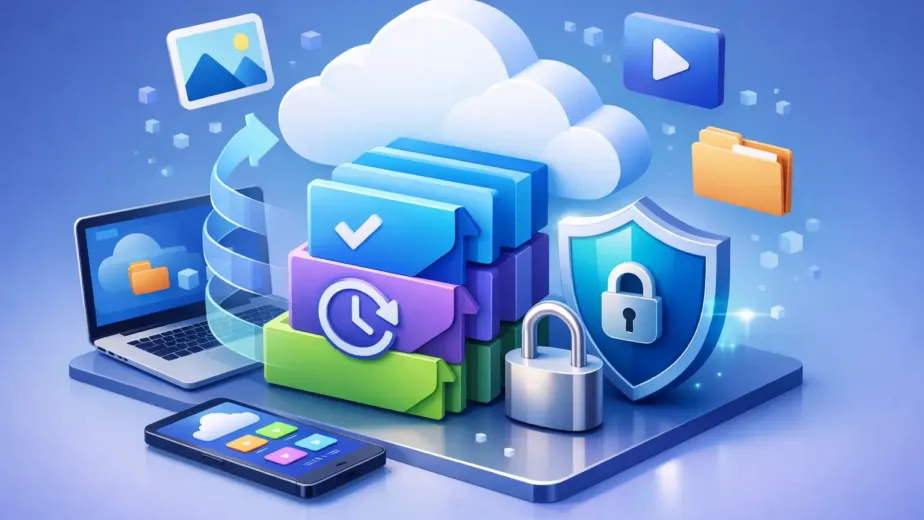
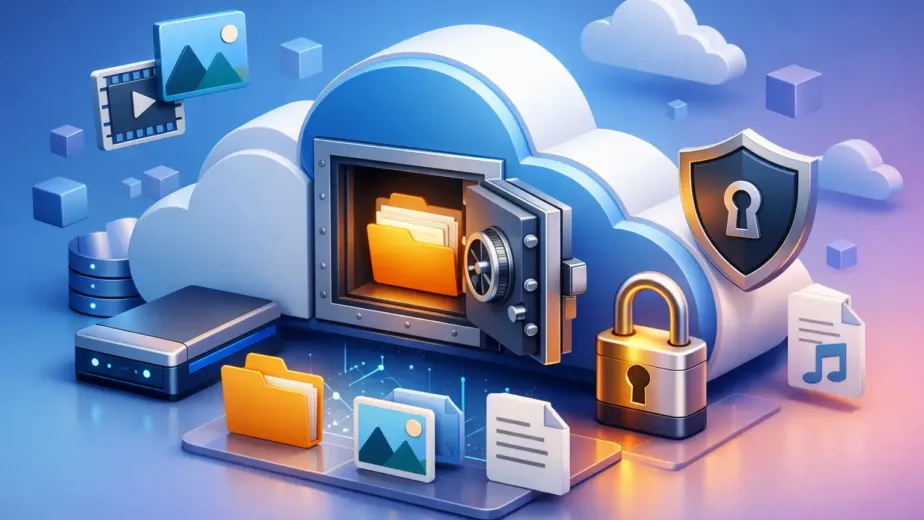
Cloud storage can support this routine when it combines encrypted storage, controlled sharing, cross-device access, version history, and account-level permissions. Cloud8USA is designed to give users direct control over files, sharing, and access without requiring complicated installation or a difficult setup process.
Ransomware protection is not one setting you turn on and forget. It is the confidence that comes from knowing your files are organized, access is intentional, and a clean copy is available when something goes wrong. Start with the folder you would least want to lose, protect it today, and let that one practical decision shape the rest of your file habits.