A missing tax document, an overwritten client file, or a phone that will not turn on can turn an ordinary day into a recovery project. The top backup solutions do more than hold extra copies of files. They give you a practical way to recover the right version, from the right place, when you need it.
For individuals and small teams, the best choice is rarely the one with the longest feature list. It is the service you will actually use, understand, and trust with your most important files. That means looking beyond storage capacity to consider recovery, security, access controls, and how easily the system fits into your routine.
What Makes a Backup Solution Worth Using?
A backup is a recoverable copy of your data. That distinction matters because a folder that simply syncs across devices can also copy a mistake. Delete a file on one connected device, and that deletion may appear everywhere else. A dependable backup strategy preserves prior versions or keeps an independent copy so you have a path back.
The right solution should answer four basic questions clearly: What files are protected? How often are copies updated? How long can older versions be restored? Who can access the backup?
For personal files, that may mean photos, scanned records, financial documents, schoolwork, and personal projects. For freelancers and teams, it often includes client deliverables, source files, contracts, shared assets, and operational documents. The more expensive or time-consuming a file would be to replace, the more intentional your backup plan should be.
Recovery matters more than raw capacity
A large storage plan is useful only if you can quickly find and restore the file you need. Look for clear folder organization, search tools, version history, and a simple restore process. If a client asks for last month’s approved design, you should not have to guess which copy is correct.
Version history is especially valuable for documents and active project files. It gives you options after accidental edits, unwanted changes, or a file replacement that should not have happened. Retention periods vary, so check how long previous versions remain available before relying on a service for critical work.
Security should support your control
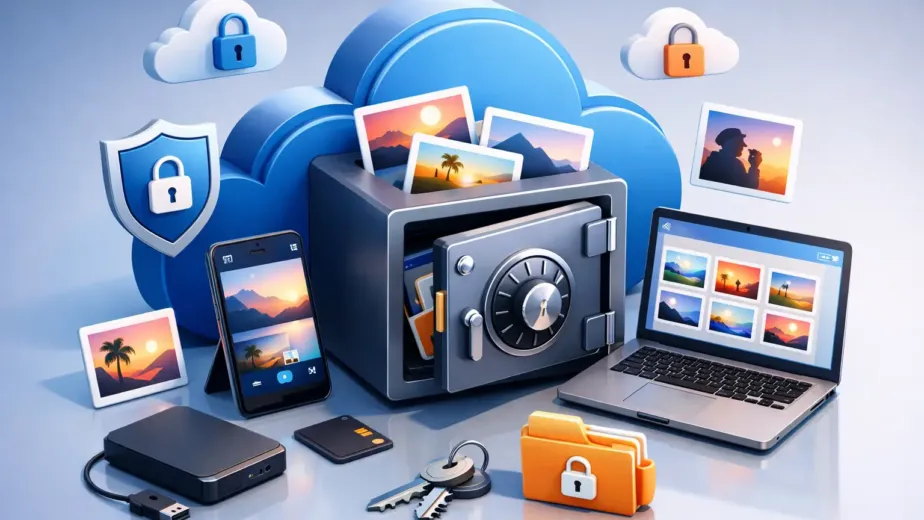
Backups often contain the files you would least want exposed: IDs, legal records, invoices, customer information, family photos, and private creative work. Encryption is a baseline expectation, but account security and sharing controls also deserve attention.
Choose a provider that makes it easy to review connected devices, set strong account credentials, manage sharing permissions, and remove access when circumstances change. Password-protected links and expiration dates can be useful when you need to send a sensitive file without leaving it available indefinitely.
For teams, granular roles are not an extra. They help ensure people can access the folders needed for their work without gaining unnecessary control over everything else.
Types of Top Backup Solutions to Consider
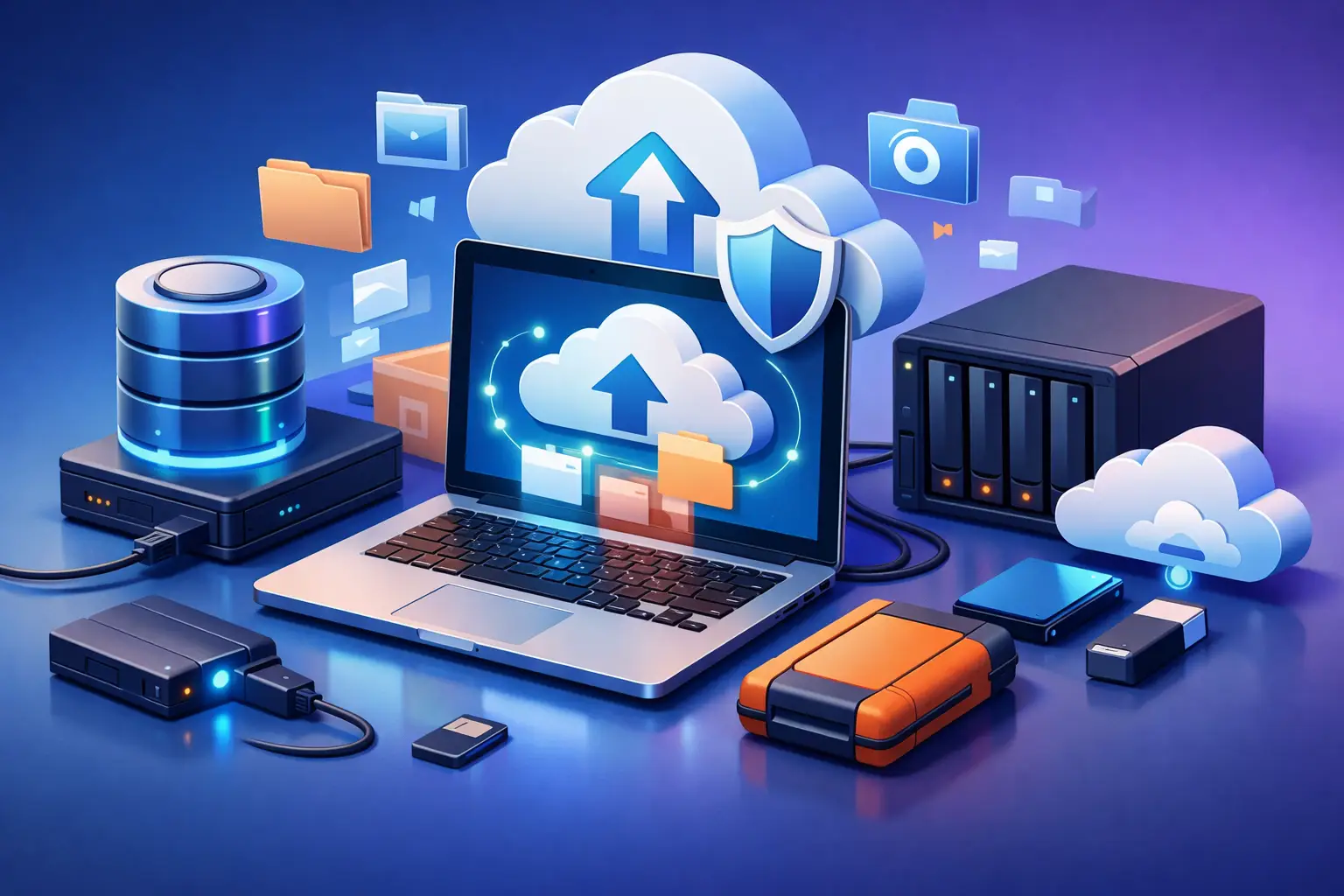
Most people get the best results from a combination of backup methods rather than a single destination. The right mix depends on your file volume, internet connection, budget, and how quickly you need to recover after a problem.
Cloud storage with backup features
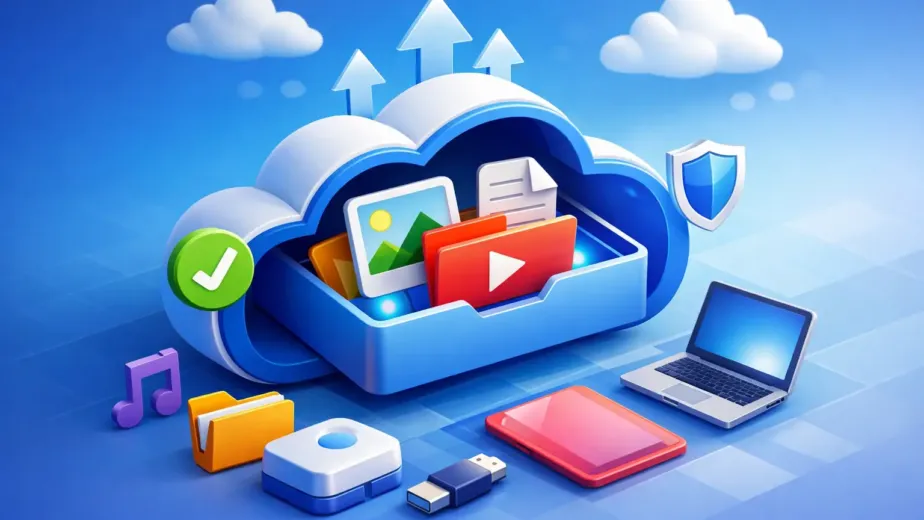
Cloud storage is a practical choice for files you need across laptops, tablets, and phones. A browser-based dashboard can make protection feel straightforward: upload files, organize folders, access them from approved devices, and share only when you choose.
This approach works well for documents, photos, project folders, and media libraries that need regular access. It is particularly useful for students, freelancers, and distributed teams because it combines storage with collaboration. Features such as file restoration, version history, team workspaces, and activity tracking add protection without requiring advanced IT knowledge.
Cloud8USA, for example, is designed around encrypted storage and direct dashboard control, giving users a simple way to manage files, devices, permissions, and sharing from one place.
The trade-off is upload time. Large video libraries or extensive archives can take time to transfer, especially on slower home connections. Start with irreplaceable files first, then build out your archive in stages.
External drives for local copies
An external hard drive or solid-state drive provides a local copy that is fast to access and does not depend on an internet connection. This is useful for large media collections, completed projects, and a periodic full archive of your computer.
Local storage has limits. A drive can fail, be lost, or be damaged in the same event that affects your computer. It also requires a routine. If the drive stays in a drawer for six months, it may contain an outdated copy that cannot solve your current problem.
A local drive is strongest when it supports, rather than replaces, an offsite backup.
Device-level backup services
Device backup tools can protect much more than visible files. Depending on the service and operating system, they may preserve settings, applications, system configurations, and other information needed to restore an entire computer or phone.
This can be the right choice if replacing a damaged device quickly is a priority. Still, device-level backups may not offer the same folder-sharing experience, document organization, or collaboration controls as a cloud storage platform. Many users keep both: one solution for full-device recovery and another for the files they use every day.
Offline or archive storage
For long-term records that do not need frequent access, offline storage can be a sensible additional layer. This might include a stored external drive or another archive kept in a separate physical location.
The benefit is separation from your daily devices and accounts. The downside is convenience. Offline archives should be labeled clearly, checked periodically, and refreshed as storage hardware ages.
Build a Backup Plan That Fits Your Risk
The familiar 3-2-1 approach remains useful: keep three copies of important data, on two different types of storage, with one copy stored offsite. It is not a rigid rule for every file, but it is a helpful way to avoid a single point of failure.
Start by separating files into three groups. First are irreplaceable files, such as personal records, original photos, client contracts, and business financial documents. These should have an offsite copy and a local copy whenever possible. Second are active files that change often, including current schoolwork and project folders. These benefit from automatic or frequent cloud protection and version history. Third are files you can download or recreate, such as installed apps or copies of publicly available material. They may need less backup attention.
Next, decide how much data loss is acceptable. If losing a week of edits would create a serious problem, your active files need more frequent backup than a monthly archive. If you manage a team, establish where final files belong and who is responsible for confirming they are protected. A shared workspace without a clear file process can create confusion even when storage is plentiful.
Questions to Ask Before Choosing a Service
Storage capacity should match your actual needs, not just your current folder size. Leave room for new photos, project growth, and file versions. A creator working with HD video will reach a storage limit far faster than someone saving PDFs and spreadsheets.
Also consider transfer speed, especially if you routinely upload media-heavy folders or restore large projects. Higher-speed options can be worth the cost when time affects client deadlines or team productivity.
Review the provider’s approach to account protection, file recovery, device access, and sharing controls. If you work with others, confirm that the plan supports the permissions, workspaces, and administrative visibility you need. A low-cost plan can be an excellent fit for personal records, while a growing team may need advanced roles, activity tracking, and centralized administration.
Finally, test the experience before an emergency. Upload a sample folder, access it from another device, restore an earlier file version, and review how sharing permissions work. A backup you have tested is far more reassuring than one you only assume is working.
Make Backup a Habit, Not a Cleanup Project
The biggest threat to a backup plan is often delay. People wait until a laptop fails, a phone disappears, or a file is accidentally overwritten. By then, the best recovery options may already be gone.
Choose a simple structure, protect your highest-value files first, and review your settings when your work or devices change. The goal is not to create more technology to manage. It is to know that the files behind your work, memories, and plans remain available when you need them.