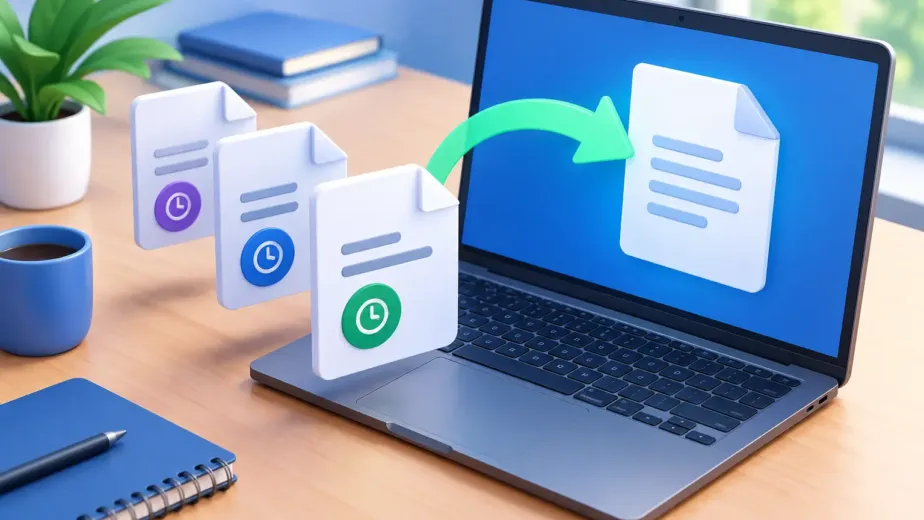

A document can disappear in seconds: a folder is cleaned up before a deadline, a shared file is overwritten, or the wrong attachment is removed from a phone. The good news is that you can often recover deleted documents online if you act before cleanup policies, new edits, or storage limits remove the remaining recovery options.
The best path depends on where the file lived, how it was deleted, and whether someone else had access to it. Start with the simplest recovery method first. Avoid creating new files, syncing large folders, or making major edits until you know whether the missing document can be restored.
How to recover deleted documents online
Begin by identifying the file’s last known location. Was it saved in a cloud storage account, attached to an email, shared through a team workspace, or stored only on a computer? Searching every possible location at once can create confusion. A focused check is faster and reduces the risk of overlooking an obvious copy.
If the document was stored in a browser-based cloud account, sign in from a trusted device and check the Deleted Files, Trash, or Recycle Bin area. Most cloud storage services keep deleted files for a limited period rather than removing them immediately. Search by file name, extension, folder, or the date it was last modified.
When you find the document, restore it to its original folder or a clearly labeled recovery folder. Opening the restored file before moving on is worthwhile. Confirm that it is the right version, that pages and formatting are intact, and that any linked spreadsheets, images, or attachments are still available.
Check version history before treating a file as lost
A document is not always deleted. Sometimes it has been replaced by a blank file, edited incorrectly, or saved over during a collaboration session. In that situation, the current file may still exist, but its useful content may not.
Version history can be the better recovery tool. Look for earlier saved versions and compare timestamps before restoring one. Choose the version that contains the work you need, then save a separate copy if you are unsure. This preserves the current file while giving you room to review the older one.
For freelancers and teams, version history is especially valuable when several people work in the same folder. It helps separate an accidental overwrite from a true deletion and provides a clear record of what changed.
Look in shared folders and activity records
If the document was shared, the owner or workspace administrator may have a different view of its status. A file could have been moved to another folder, removed from your access, or deleted by another collaborator. Ask the file owner to check their deleted-items area and recent activity.
Activity tracking can also answer a practical question: did the document disappear because it was deleted, or because its permissions changed? Those are different problems. A deleted file may be restorable. A permissions issue may simply require the owner to restore your access.
Do not ask collaborators to repeatedly upload replacements while you are still searching. Multiple copies with similar names make it harder to identify the original and can introduce conflicting edits.
What to do when the deleted file is not in the trash
A missing document may still have another recoverable copy. Check places where files commonly travel during normal work: email attachments, downloaded files, device folders, shared project folders, and older backups. Search for both the document name and likely file types such as DOCX, PDF, XLSX, PPTX, or TXT.
If you used a desktop sync folder, check the computer’s local Recycle Bin or Trash as well. If the file was deleted on one device, synchronization may have carried that deletion to the cloud. However, a local recycle area, an earlier backup, or version history may still hold a copy.
For files saved only to a computer drive, online recovery is less likely unless a backup or syncing service was already in place. Do not install random recovery software immediately, especially on the same drive where the document was stored. New data can overwrite the space once used by the deleted file. If the document is business-critical, confidential, or needed for a legal matter, pause use of that device and consider professional data recovery support.
Know when retention periods matter
Deleted-file recovery is time-sensitive. Cloud providers commonly keep deleted items only for a defined retention period, and the exact window can vary by plan, account type, or administrative settings. After permanent deletion, recovery may no longer be possible.
That is why it helps to restore first and organize later. If you see a file in the deleted-items area, bring it back before spending time deciding where it belongs. You can rename it, review it, and move it once it is safely restored.
Protect documents after recovery
Recovering a document solves the immediate problem. Preventing a repeat requires a few habits that keep control in your hands without adding complicated steps to your day.
Keep important work in one trusted cloud location instead of spreading it across browser downloads, desktop folders, text messages, and USB drives. A central dashboard makes documents easier to find from a laptop, tablet, or phone and reduces the chance that the only copy lives on one device.
Use clear folder names and consistent file naming. A simple format such as `Client_Project_Document_2026-08-15` can make search results far more useful than names like `final`, `final2`, or `new document`. For students, organize by course and semester. For teams, organize by client, project, and approved access level.
Version history should be enabled for work that changes frequently. It is useful for contracts, creative assets, budgets, proposals, and shared operating documents. A backup is still different from version history: version history helps you return to an earlier state, while backups provide a separate recovery copy if an entire folder is lost or corrupted.
For sensitive documents, use permission controls rather than sending unrestricted copies. Give people only the access they need, remove access when a project ends, and use password-protected or expiring share links when available. This lowers the chance of accidental deletion or unwanted changes by people who no longer need the file.
Choose storage with recovery in mind
Storage capacity matters, but recovery features matter when a file is valuable. Before relying on any cloud account for personal records or business work, review how it handles deleted items, file restoration, version history, sharing permissions, and account security.
A simple browser-based service can be a strong fit if you want to access documents without installing software or managing complex infrastructure. Cloud8USA, for example, offers plans built around secure storage, file restoration, version history, and access controls, so users can manage files and sharing from one place.
The right plan depends on how you work. A student may need dependable access to class materials and personal records. A freelancer may prioritize fast transfers, folder sharing, and older file versions. A growing team may need workspaces, granular roles, activity records, and administrative controls. More features are not automatically better, but the recovery tools should match the value and volume of the files you keep.
A quick recovery checklist
When a document disappears, follow this order:
- Check the cloud account’s Deleted Files, Trash, or Recycle Bin.
- Review version history if the file exists but its content changed.
- Ask the shared-folder owner or administrator to check activity and permissions.
- Search email attachments, device recycle areas, downloads, and separate backups.
- Restore the file promptly, verify it opens correctly, and create a protected copy.
A deleted document does not have to become a permanent loss. A clear recovery process, sensible retention settings, and controlled sharing give you a better chance of getting your work back when one mistaken click happens.