A tax document is needed while you are away from your desk. A client asks for the latest project file from a phone. A student realizes the presentation is saved only on a home laptop. These are the moments when the ability to access files across devices stops being a convenience and becomes essential.
The goal is not simply to put files online. It is to keep the right files available on the devices you use, while retaining control over who can view, edit, download, or share them. With browser-based cloud storage, your documents, photos, media, and project folders can stay organized in one protected location instead of being scattered across hard drives, email attachments, and temporary downloads.
Why cross-device access needs a better system
Many people already move files between devices, but the process is often unreliable. They email attachments to themselves, use a USB drive, send a file through a messaging app, or create several copies with unclear names such as “final,” “final-new,” and “final-really-final.” Those workarounds can create confusion, expose sensitive information, and make it difficult to identify the current version.
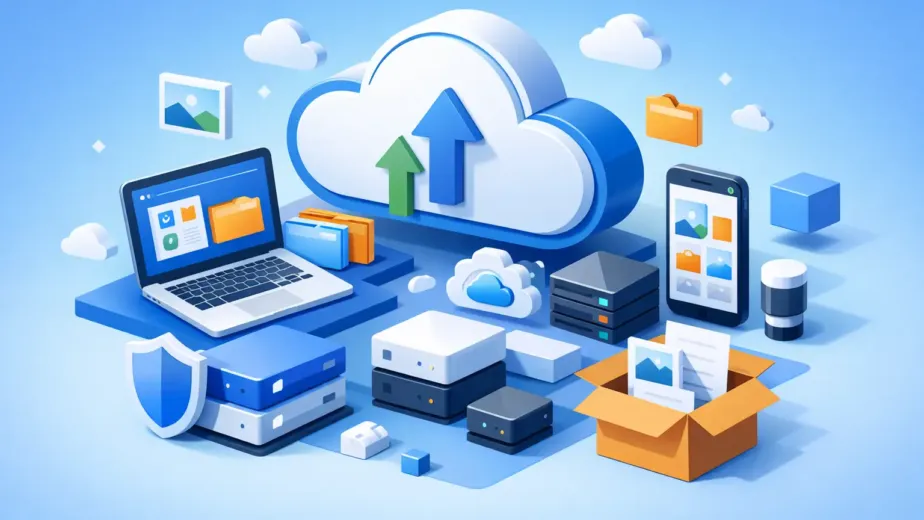
A cloud storage dashboard gives you one central home for your files. Sign in from a desktop at work, a tablet during a meeting, or a phone while traveling, and you can find the same folder structure each time. Because the files remain in your storage account rather than permanently tied to one device, replacing a computer or switching phones does not have to mean starting over.
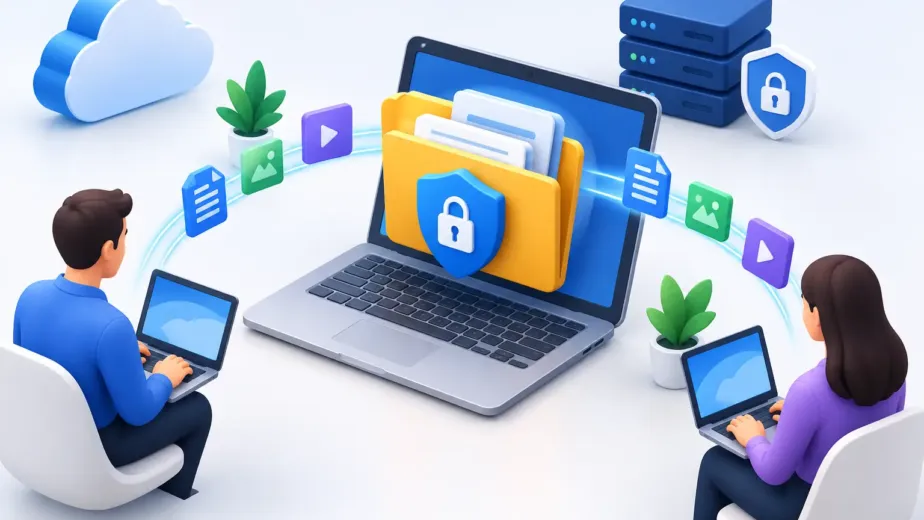
This approach is especially useful when your work and personal life overlap. Freelancers may need contracts, source files, invoices, and client deliverables from different locations. Families may want access to records and photos without leaving their only copy on a single computer. Small teams need a controlled way to work from different devices without passing files around through email.
How to access files across devices without losing control
The simplest setup begins with a cloud account that you can reach through a web browser. Upload your important files from the device where they currently live, organize them into clear folders, and sign in from the other devices you use. There is no need to treat each device as a separate filing cabinet.
Start by choosing folders that reflect how you actually look for information. Personal users may separate documents, photos, household records, and backups. A professional may use folders for clients, active projects, finance, and archives. Teams can organize by department, project, or customer. The best structure is one that makes sense to you quickly, especially when you are viewing it on a smaller mobile screen.
Clear file names matter just as much. Include useful details such as the project name, date, or version when appropriate. For example, “Johnson_Proposal_2026-07-29” is easier to identify than “proposal latest.” Consistent names reduce the risk of opening or sharing the wrong file when you are moving quickly.
Once your files are uploaded, use the browser dashboard as your source of truth. Avoid downloading a file, editing it locally, and forgetting where the updated copy went. If you must work on a downloaded file, upload the revised version promptly. Storage plans with version history add an extra layer of protection by allowing you to restore an earlier copy after an accidental overwrite or unwanted change.
Choose access based on the device and the task
Not every device should have the same level of access. Your primary laptop may be appropriate for uploading large media files, managing folder structures, and handling sensitive documents. A phone is better suited to reviewing a file, sharing a controlled link, or retrieving a receipt when you are away from your desk.
For public or shared computers, be more cautious. Use a private browsing session when possible, never save passwords in the browser, and sign out when finished. Do not download sensitive files unless you truly need a local copy. A browser-based storage dashboard is valuable here because you can reach your account without installing software on a device you do not own.
Protect access before sharing files
Convenience should not require giving up privacy. The same file that is easy for you to reach can also be easy for the wrong person to reach if account access and sharing settings are not managed carefully.
Use a unique, strong password for your storage account and protect the email address connected to it. Review active devices and account sessions periodically, especially after replacing a phone, losing a laptop, or ending a work relationship. If a device no longer belongs in your account, remove its access.
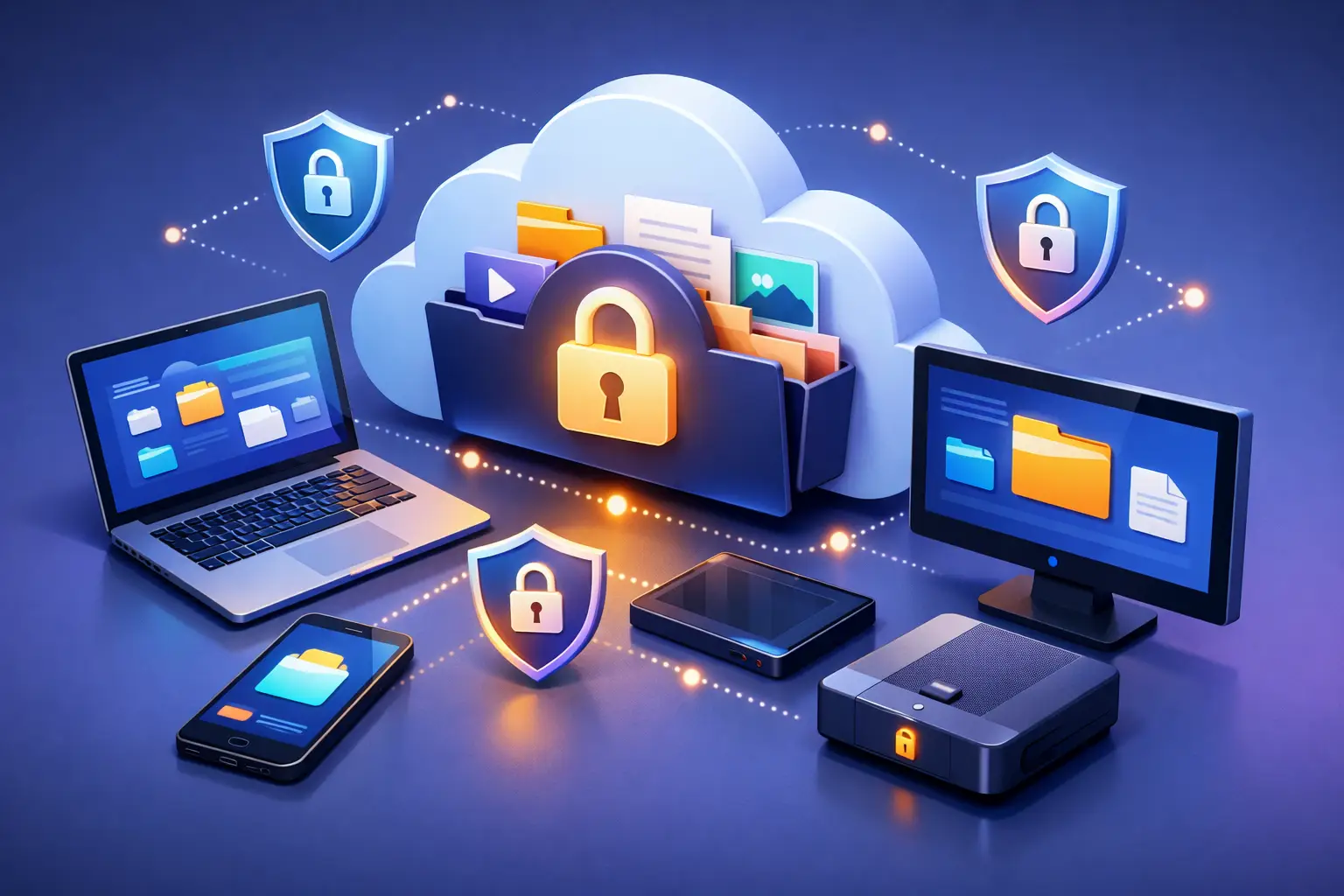
Encryption helps protect files while they are stored and transferred, but security also depends on everyday decisions. Be thoughtful about what you share, who receives access, and how long that access should last. For sensitive material such as tax records, client files, legal documents, or internal plans, a shared link should not remain open indefinitely.
When your plan includes password-protected and expiring share links, use them. A password adds a separate checkpoint before the file can be opened. An expiration date prevents a link from remaining active long after its purpose has passed. These controls are practical for sending a portfolio, a large deliverable, or a private document without attaching it to an email.
For teams, granular permissions are more useful than broad, permanent access. Give collaborators only the access they need for their role. A contractor working on one campaign may need one project folder, not every business file. Activity tracking and administrative controls can help business owners understand how shared content is being used and respond quickly when access needs to change.
Keep files available when connections are imperfect
Cross-device access depends on an internet connection, so plan for the places where service is weak or unavailable. Before a flight, client visit, or remote workday, download the specific files you expect to need. Keep that local set limited and remove sensitive downloads once they are no longer necessary.
Large files deserve extra planning. High-resolution video, design exports, and full-device backups can take time to upload or retrieve, particularly on mobile data or slower networks. Upload large collections from a stable connection when possible, and use a plan with capacity and transfer speed that match your workload. A photographer delivering galleries and a student storing PDFs have very different needs.
It also helps to separate active files from long-term archives. Keep current project material easy to find, while moving completed work into clearly labeled archive folders. This reduces clutter across every device and makes the files you need most easier to locate.
Match storage features to the way you work
A basic storage plan can be enough for personal documents, coursework, and a modest photo collection. As your needs grow, the right features depend less on a checklist and more on your daily habits.
If you frequently work with large files, higher storage capacity and faster transfers can save time. If you share work with clients, password-protected links and expiration settings offer better control than email attachments. If you manage repeated revisions, version history can prevent a small mistake from becoming a major setback. If several people work from the same collection of files, team workspaces, permissions, and administrator controls provide structure without requiring everyone to be an IT specialist.
Cloud8USA is designed around this kind of direct control: one browser-based dashboard where you can upload, organize, access, and manage files without complicated installation. Start with the features you need now, then choose more capacity, collaboration tools, or administrative controls as your work changes.
Common questions about cross-device file access
Can I access my files from a phone without storing everything on it?
Yes. When files are stored in your cloud account, you can sign in through a browser and retrieve what you need without keeping your entire library on the phone. Download only the files needed for offline use, particularly if storage space is limited.
What happens if my laptop is lost or stops working?
Files that were successfully uploaded to your cloud storage remain available from another authorized device. This is why it is wise to upload important documents and backups regularly rather than waiting until a device problem occurs.
Is sharing a link safer than emailing an attachment?
It can be, particularly when the link is password-protected and set to expire. You can control access to the stored file rather than sending multiple copies that may remain in different inboxes. The right method still depends on the sensitivity of the file and the recipient.
A well-organized cloud account gives you a calmer way to work: the file you need is where you expect it to be, and access remains yours to grant, limit, or remove.